- Who sees it: a user with the “Manage Studio” permission. The owner and the admin have it by default. Without it, the left menu has no Studio item.
- Where: Studio in the left menu
What it is
Studio is the section where you set up Cargofy for your work without a developer. You describe which data you keep, what happens to it next, who does the work and where your team works with it.
Studio has several parts. Each part is a card on the Studio page with an Open button.
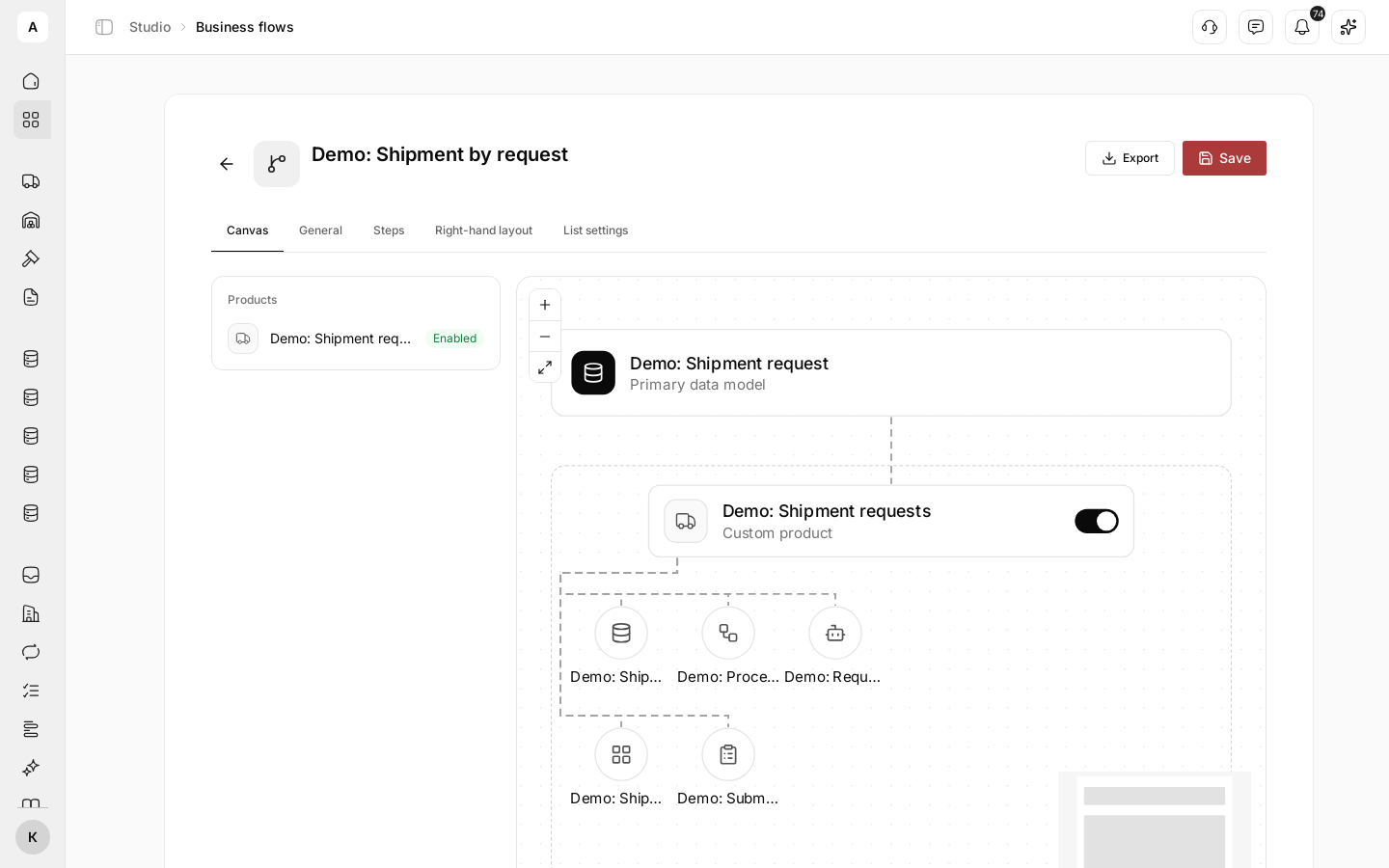
How it fits together
Every page in this section uses one example — shipment requests:
- The data model “Demo: Shipment request” stores requests with the fields “Route”, “Loading date”, “Weight, kg” and “Body type”.
- A customer submits a request through the form “Demo: Submit a shipment request”, and a new record appears in the model.
- The workflow “Demo: Process shipment request” reacts to the new record and gives the dispatcher a task to check the request.
- The Digital Worker “Demo: Request dispatcher” helps with the check. Superpowers set what it is allowed to do.
- The team works with requests in the interface “Demo: Shipment requests”, a table sorted by loading date.
- Integrations connect the mail, load boards and telephony that workflows and Digital Workers use.
- The product “Demo: Shipment requests” puts the model, workflow, Digital Worker, interface and form together.
- The business flow “Demo: Shipment by request” places the product as a step around the model and gives the team an item in the left menu.
You can move a finished product or business flow to another account. Look up an unfamiliar word in the glossary.
Next steps
Which data you keep and with which fields.
Steps the platform runs on its own: from an event to a task.
Actions and instructions you give to Digital Workers.
AI workers that do part of the work.
Your team's work screen on top of a data model.
Step-by-step forms your customers use to enter data.
Mail, load boards, telephony and other external systems.
Studio parts put together into one area of work.
Products as steps around one data model.
Export to a file and import into another account.
What the words you meet in Studio mean.