- Who can: a user with the “Manage Studio” permission
- Where: Studio › Products
What it is
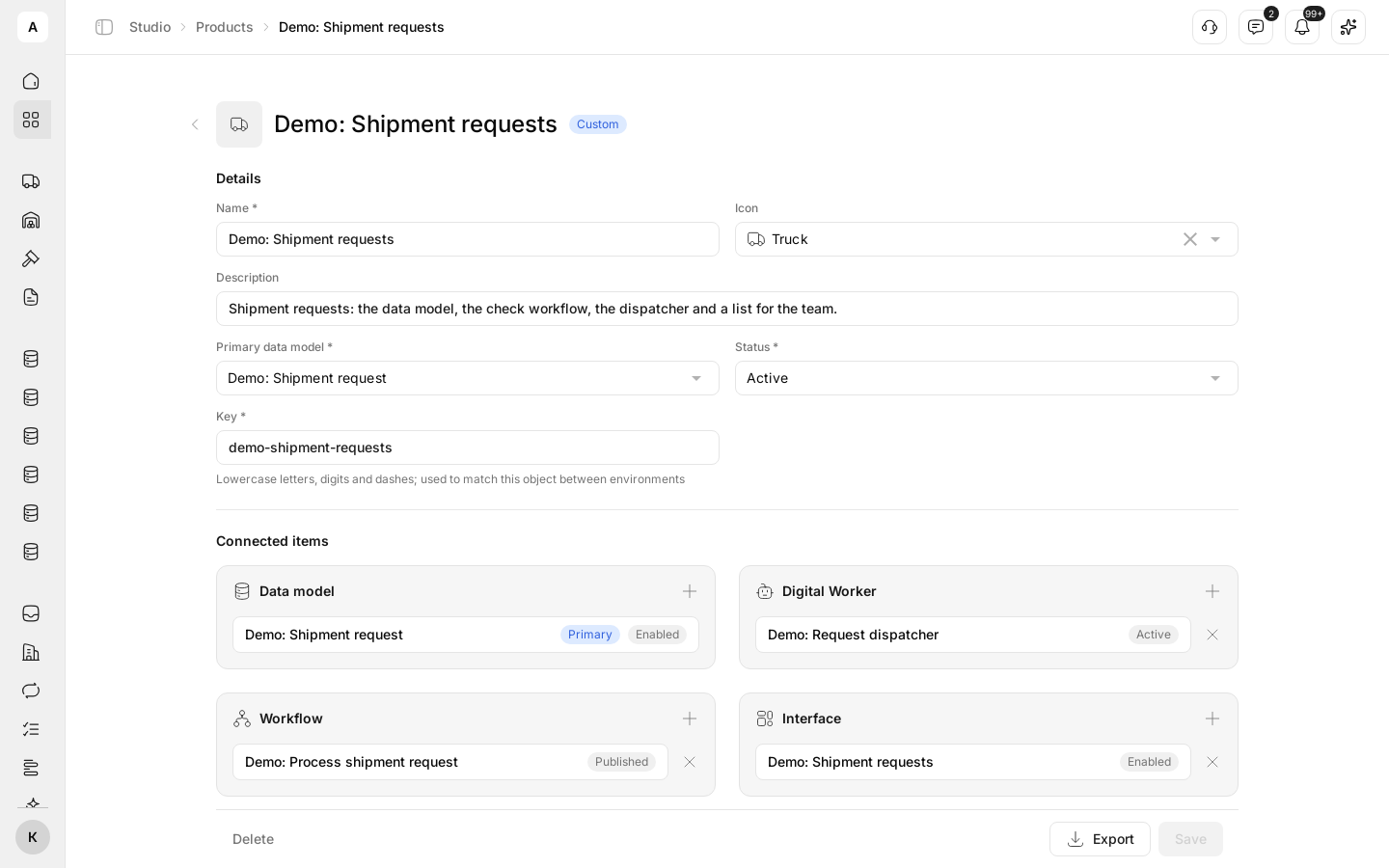
A product is one piece of operations put together as a whole: what data you keep, who handles it and how, where the team sees the list. Take shipment requests: a data model with the requests, a check workflow, a dispatcher Digital Worker, a table for the team and a form the customer uses to submit a request.
There are two kinds of products. System products are built into the platform: “Freight Procurement”, “Carrier Network”, “Documents”, “Tracking” and others; you turn them on and off and can add your own workflows, Digital Workers, existing interfaces and forms to them. Custom products you build yourself from parts you already made in Studio: data models, workflows, Digital Workers, interfaces and forms. Every custom product is built around one “Primary data model”.
What it can do
- Two tabs. System shows the platform’s products, Custom the ones you built.
- Turn system products on. Use the switch on the card or the “Status” field on the product page: “Active” or “Inactive”. What each product covers and which events it reports: System products.
- Build custom products from five parts. The “Connected items” section has the “Data model”, “Digital Worker”, “Workflow”, “Interface” and “Form” blocks. In each block, Add existing adds a part you have, and Create new opens the editor of a new part that is already in the product.
- The “Recommended” badge. When you add parts, workflows and interfaces that work with the product’s primary model get this badge.
- One part in several products. You can add a workflow or an interface to different products. The “Also in … other products” badge shows where else it is used.
- Custom product status. “Draft”, “Active” or “Archived”. The status shows on the product card; you can also switch it on the business flow canvas.
- Move to another account. Export saves the product with its parts to a file, Import recreates them in another account.
Limits
- A system product’s name, description, key and primary model cannot be changed, and it cannot be deleted: those fields are inactive, and Delete shows “Managed by the platform”. You cannot add a data model to a system product or create an interface for it from this page.
- You cannot change the primary data model while the product is a step in a business flow. Remove the product from the flow’s steps first.
- The primary model cannot be removed from “Connected items”, only changed in the “Primary data model” field.
- The “Form” block works only if forms are on for your account. Otherwise its menu items are inactive with the hint “Turned off for this workspace”; ask Cargofy support to turn forms on.
- Deleting a product does not delete its parts: workflows, Digital Workers, data models, interfaces and forms stay in Studio. The product disappears from the business flow steps it was in.
Next steps
Step by step: the “Demo: Shipment requests” product from a model, a workflow, a worker, an interface and a form.
The built-in products and their workflow events.
Turn a built-in platform product on or off.
Export to a file and import with a check before applying.
A data model is the base of every custom product.
Next part: products as steps around one data model.