- Who can: a user with the “Manage Studio” permission
- Where: Studio › Business flows
What it is
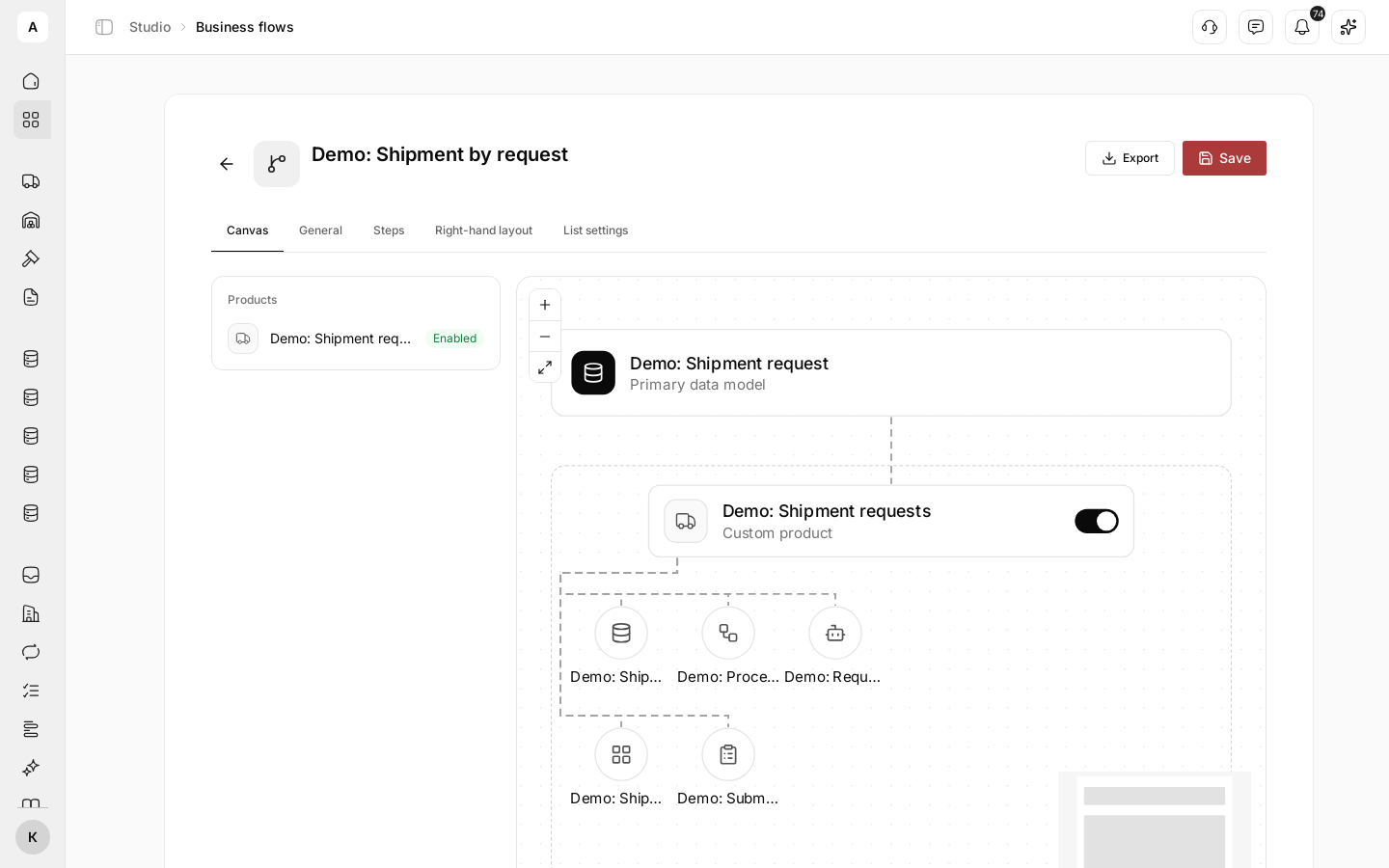
A business flow puts your products in sequence around one data model. For example, the flow “Demo: Shipment by request” is built on the model “Demo: Shipment request”, and its step is the product “Demo: Shipment requests”.
The team gets the flow as an item in the left menu. It holds the list of the model’s records, and on a record page each step shows its product’s interface. A dispatcher opens a request and sees all the work on it in one place, step by step.
What it can do
- Steps from products. On the Steps tab, you add products built on the flow’s model and set their order. For a step, you can pick an “Interface”, set a “Title override” and turn on Collapsed by default so the step opens collapsed.
- Canvas. The Canvas tab opens first and shows the flow as a diagram: the data model, the product steps and everything each product holds. On the left, the “Products” list shows each product’s state: “Enabled” or “Disabled”.
- A record list for the team. On the List settings tab, you pick the columns, filter and sort for the record list the team sees in the menu.
- Right-hand layout. On the Right-hand layout tab, you assemble the record page blocks to the right of the steps: “Record card”, “Tasks”, “Map” and others.
- An item in the left menu. A flow with the “Active” status and Show in sidebar turned on appears in the team’s left menu.
- System flow. The “Shipment” flow, marked “System flow”, is in every account: freight procurement, documents, tracking, locations and settlements. You can view it but not change it.
- Moving between accounts. Export on the flow page saves it to a file, Import in the flow list loads that file into another account. See Move a product or business flow.
Limits
- A step can only be your own product built on the same data model as the flow. A product goes into a flow once.
- To change the “Primary data model”, remove all steps first. A new model clears the right-hand layout and list settings.
- A step becomes “Invalid” if its product moved to another data model or the step’s interface was deleted. Pick another interface or delete the step.
- The team sees the flow in the menu only when it is “Active”, Show in sidebar is on, and the person has access to the records of the flow’s data model.
- The “Shipment” system flow cannot be changed or deleted.
- Only a user allowed to manage Studio can create and change flows.
Important
A product switch on the Canvas works right away, without Save, and turns the product on or off for the whole account, not just in this flow.
Next steps
Step by step: the model, product steps and saving, using a shipment request as the example.
The record list, the right-hand layout, the “Active” status and the left menu item.
The product that becomes a flow step.
Export a flow to a file and import it into another account.