- Who can: a user with the “Manage Studio” permission
- Where: Studio › Forms
Available if forms are turned on for your account.
What it is
A form is a step-by-step wizard for entering data. You build it from steps, publish it and send a link. The person opens the link, goes through the steps, clicks Submit, and the data lands in your data model as a new record.
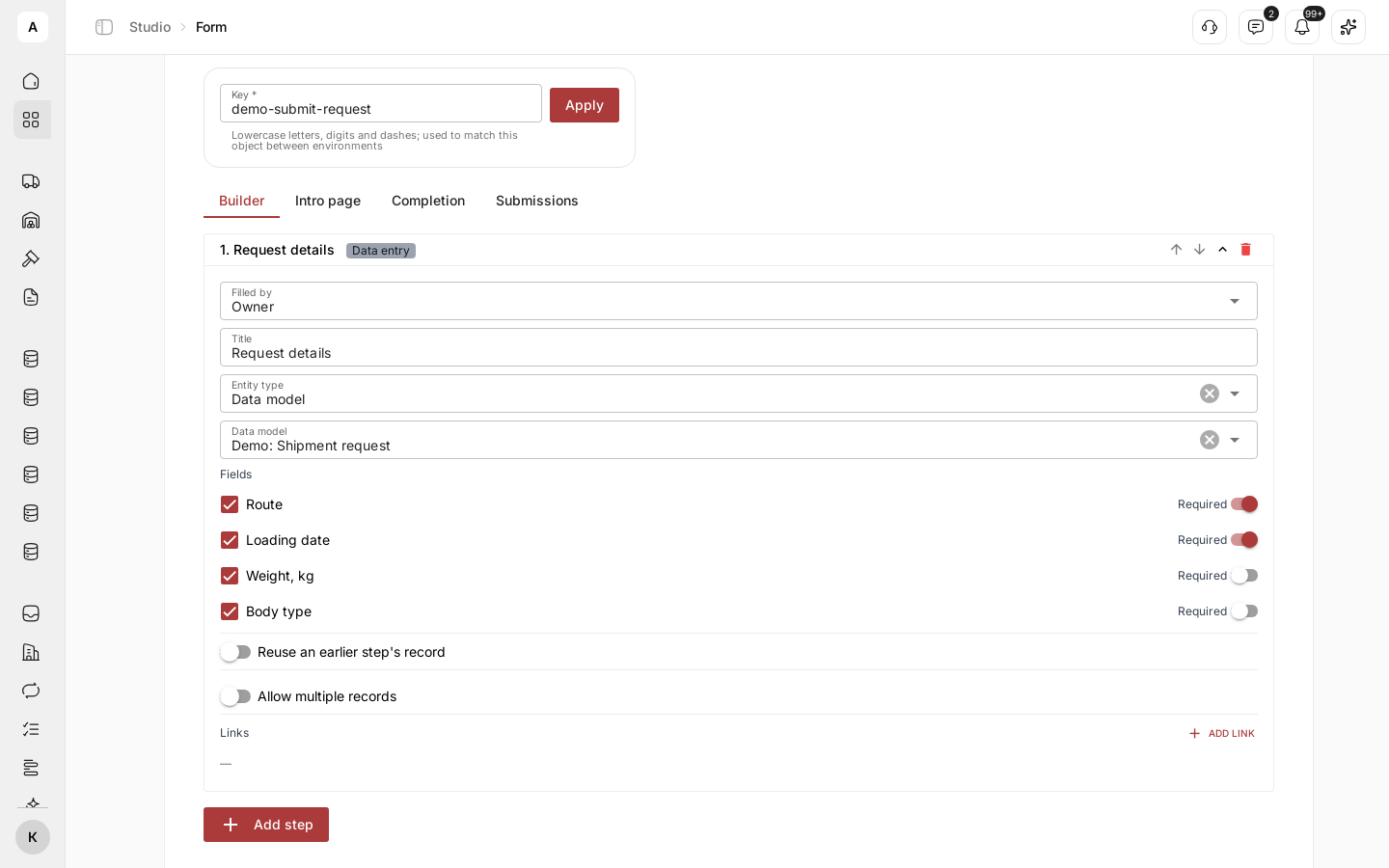
For example, the “Demo: Submit a shipment request” form has one step, “Request details”, with fields for the route, loading date, weight and body type. Each submission creates a new request in the “Demo: Shipment request” model, and a workflow immediately gives the dispatcher a task to check it. You can add the form to a product together with the model, the workflow and an interface.
What it can do
- Who fills each step. In “Filled by” you pick “Owner” — someone in your account — or “Counterparty” — a customer or partner from another company who opened your link. Each side fills only its own steps — see Collect a request from a customer and finish it in your team.
- Steps with model fields. Each step writes data into one data model. You check the fields to show.
- System data. Instead of a data model, a step can fill a “Truck”, “Trailer”, “Driver”, “Company” or “Brand”, each with its own fields.
- Several steps on one record. Reuse an earlier step's record adds fields to a record created earlier instead of a new one.
- Several records in one step. Allow multiple records lets the person add, for example, several cargo items in one step; you set “Min records” and “Max records (optional)”.
- Links between steps. Add link connects a step's record to a record from an earlier step through a relation between data models.
- Intro and completion. On the Intro page and Completion tabs you write the title and text the person sees before the steps and after sending. The text supports Markdown; check how it looks with Preview.
- Versions. Save draft saves changes without touching the published form. Publish turns the draft into a new version. The version number shows in the status next to the name; the version list opens with History.
- Form link. Copy link in the form list or in the form header gives a link you can send to anyone.
- Submission log. The Submissions tab shows who filled in the form, the status and the update time; filter the list with “All”, “Completed”, “In progress”. All submissions of your forms are also collected in the left menu: Forms › Inbound.
- Workflow runs. Each step of a published form can be picked as a workflow trigger (the “Forms” source). With “Wait for the workflow before advancing the form” on, the form waits until the workflow accepts or rejects the step — see Check a form step with a workflow.
Limits
- Only a Cargofy user can fill in a form: the link asks to sign in or register first.
- Deleting a form cannot be undone.
Next steps
Step by step: a shipment request form with a step of fields, an intro page and publishing.
How to send the link, what the person filling it in sees and where to find submissions.
A form the customer starts and your dispatcher finishes.
Every setting of a form and a step, and the submission statuses.
Next part: email, load boards and telephony for workflows and Digital Workers.
Put a form together with a model, a workflow and an interface into one product.