- Who can: a user with the “Manage Studio” permission sets it up; the whole team works in the interface
- Where: Studio › Interfaces; a ready interface sits in the left menu, in the “Interfaces” group
What it is
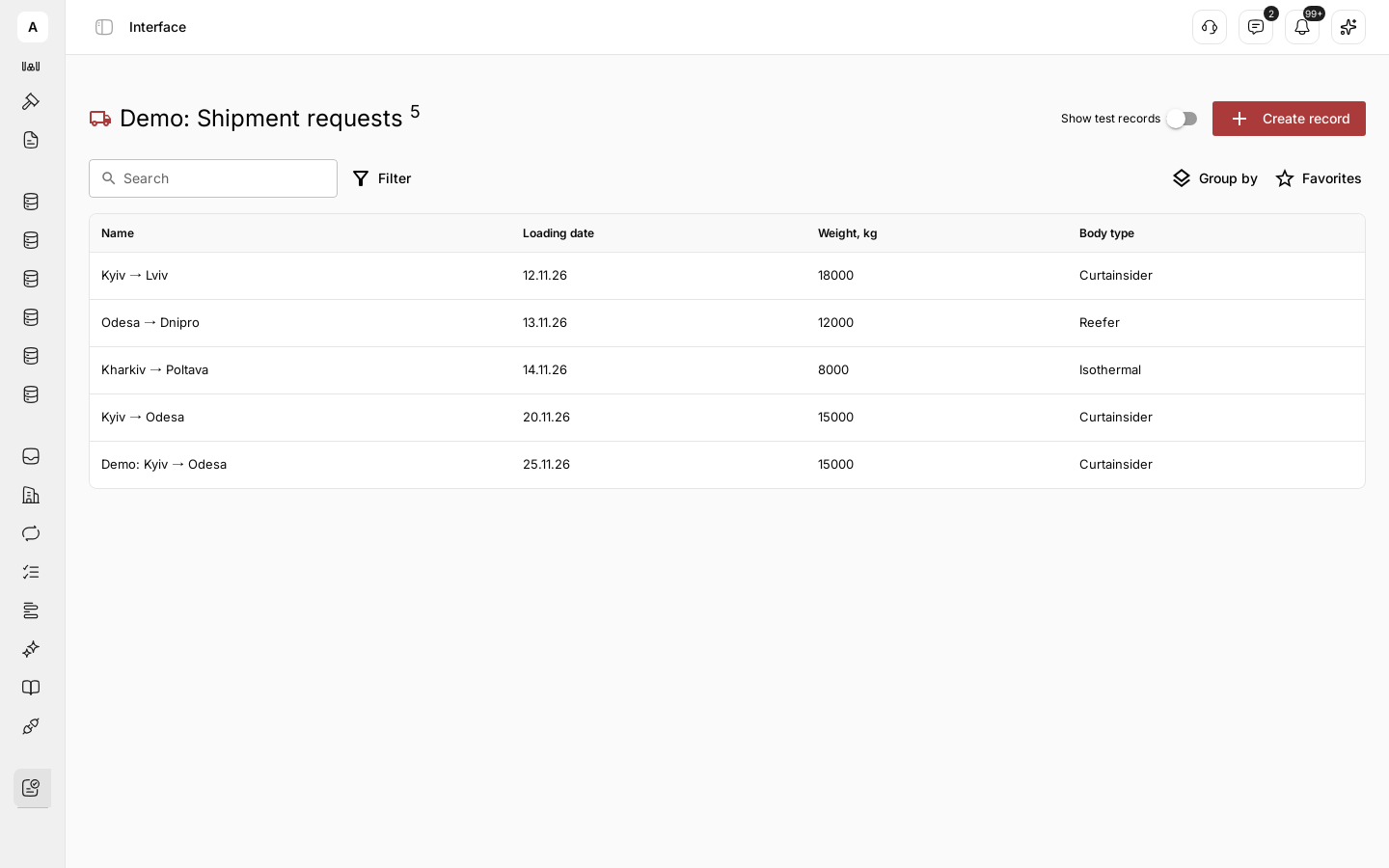
An interface is your team's working screen on top of one data model. For example, a dispatcher opens “Demo: Shipment requests” from the left menu and sees every request sorted by loading date, without digging through Studio settings.
You decide which fields the table shows, which records appear and in what order, what the record page holds and which workflows the team runs in one click. Together with a data model, a workflow and a form, an interface goes into a product.
What it can do
- Records table. “Columns” set which fields the team sees. The record name always comes first: the value of the model's primary field.
- Fixed filter and sort. “Filters” pick records by a condition: “=”, “≠”, “>”, “<”, “contains”. “Sort” sets the order: “Ascending” or “Descending”.
- Kanban, map, calendar. Besides the table, an interface shows records as a board with columns by a list field, as points on a map or as events in a calendar. The team switches views with the buttons at the top of the screen.
- Row actions. A button in a row runs a published workflow for that record, such as a request check.
- Record page. “Card blocks” set what the team sees when it opens a record: fields, related records, tasks and other blocks, one under another.
- Search and saved views. The working screen has “Search”, “Filter” and “Favorites”. “Favorites” saves the current search and filters as a view; only you see your saved views — see Work in an interface.
- Left menu item. The Show in sidebar toggle adds the interface to the left menu, in the “Interfaces” group.
Limits
- You cannot change an interface's “Data model” after saving.
- A new interface does not appear in the left menu until you turn on Show in sidebar.
- Only users with read access to the data model see its records in the interface.
Next steps
Step by step: a requests table with a filter, a sort order and a left menu item.
Show the same records as a board, on a map or in a calendar.
Add a button that runs a workflow for the selected record.
Choose the blocks the team sees when it opens a record.
How the team finds, adds and changes records.
Next part: how a customer submits a request through a link.
Put an interface together with a model, a workflow and a form into one product.