
- Who can: any member of your company
- Where: Tasks
- Time: ≈ 1 minute
Before you start
The list shows tasks newest first, 25 at a time. Load more at the bottom shows the next ones. Subtasks sit under their task: the arrow on the left of a task opens them. “My active” next to the title counts the tasks assigned to you that are not “Done” or “Cancelled”.
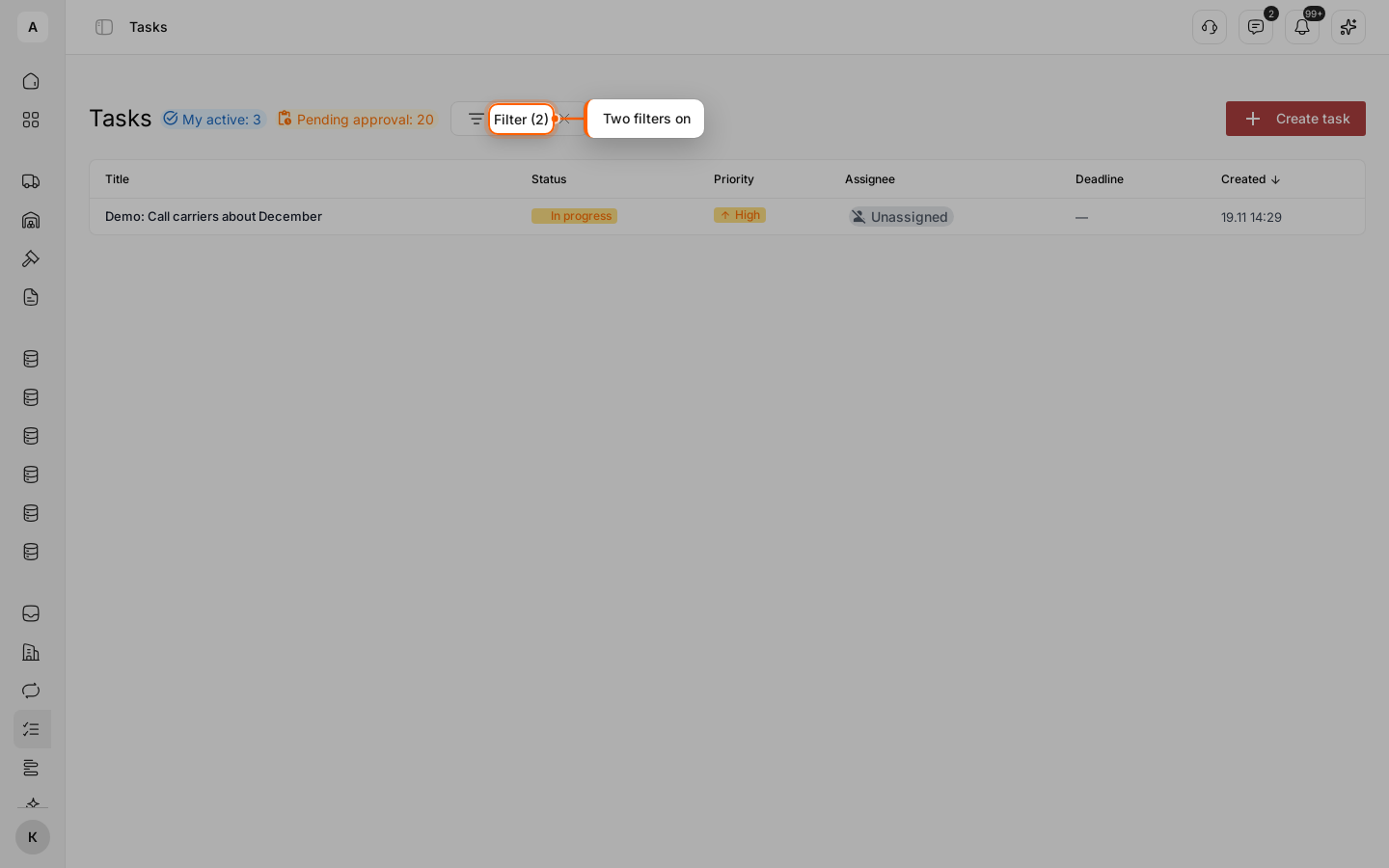
The example finds the subtask “Demo: Call carriers about December”, which is in progress.
Steps
Search by words
In Tasks, click Filter. In the panel that opens, type in “Search tasks”: “December”. The search looks in the title and the description of tasks and subtasks. Capital and small letters do not matter. A subtask that matches shows in the list as a row of its own.
Narrow the list
Pick one value in each field you need:
- “Status”: “In progress”;
- “Priority”: “Low”, “Medium”, “High” or “Urgent”;
- “Origin”: “Manual”, “Digital Worker”, “Workflow” or “Architect”;
- “Assignee”: a person, a Digital Worker or “Unassigned”.
The button now shows how many filters are on: “Filter (2)”.
Sort the list
Click the column header Deadline or Created to sort by it. Click it again to reverse the order. The arrow next to the header shows the direction.
Clear the filters
Click Clear in the filter. When nothing is found, the list shows Reset filters, which does the same.